tutorials.
Step-by-step guides with real screens, in the order you'll use them: buy your gear, activate your account, record with the app and turn it all into data with the Team Hub, the tactics board and tournaments.
buy your gear
Everything lives in one place: GPS devices, full-squad combos and licenses.
- 01Filter for what you need. In the Shop use the left rail — GPS devices, Combos or Licenses — plus the price range if it helps. You can also search by name.
- 02Compare and choose. Every product has a card with specs, what's in the box and a real photo. Combos come pre-built for 5, 11 or 15 players.
- 03Add to cart. Mix devices, combos and licenses and pay for everything in a single checkout.
- 04Pay securely with Stripe. Credit or debit card. Shipping and taxes are calculated before you confirm — no surprises.
- 05Get your confirmation. Stripe's official receipt lands in your email instantly, and the order ships from our US warehouse with a tracking number.
- → We ship to 9 countries — full details on the Shipping & returns page.
- → Full squad? Combos beat buying by the unit.
Something failing? Payment didn't go through? Check international purchases with your bank and retry — you're never charged twice.
Go to the shop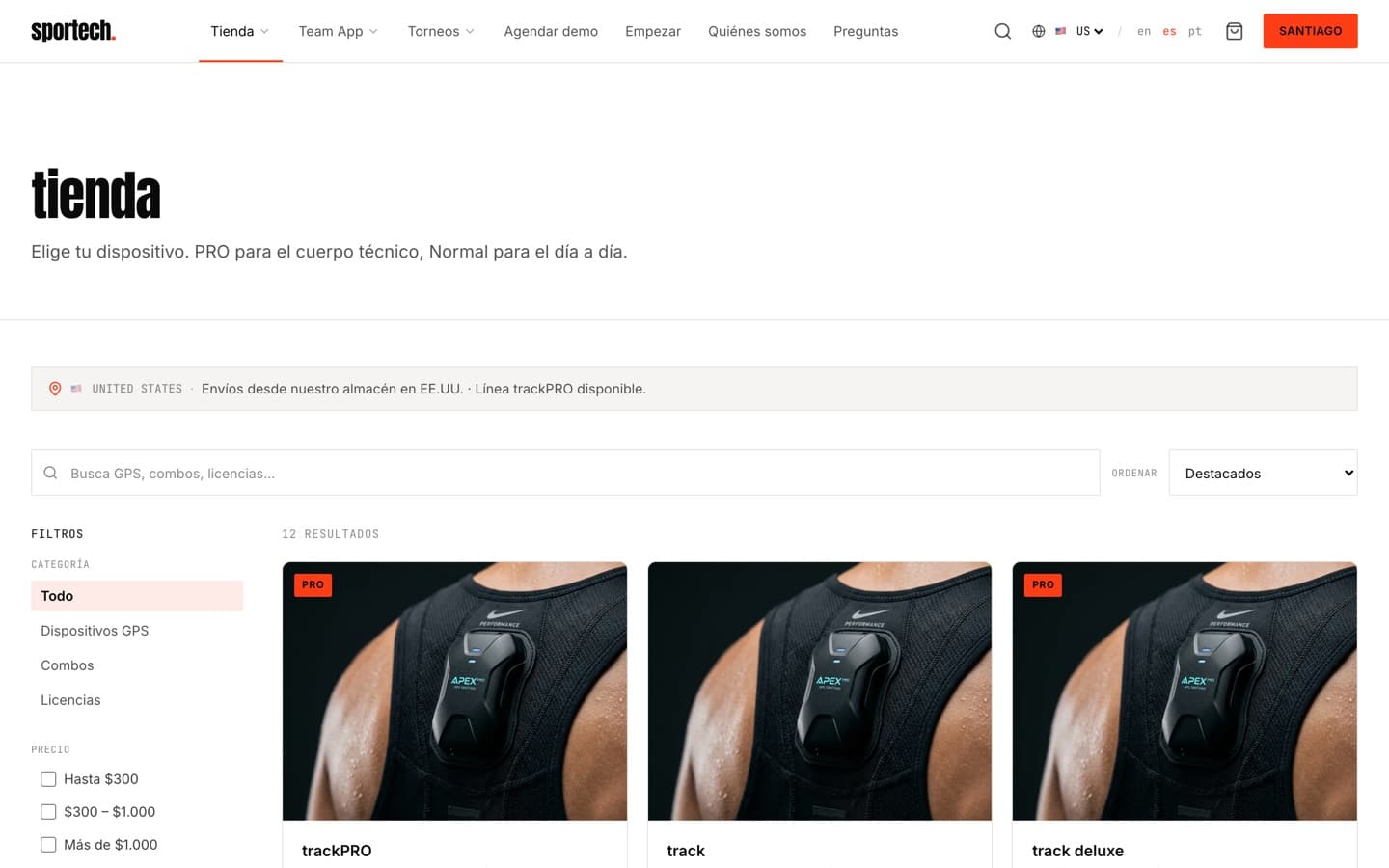
activate your account & licenses
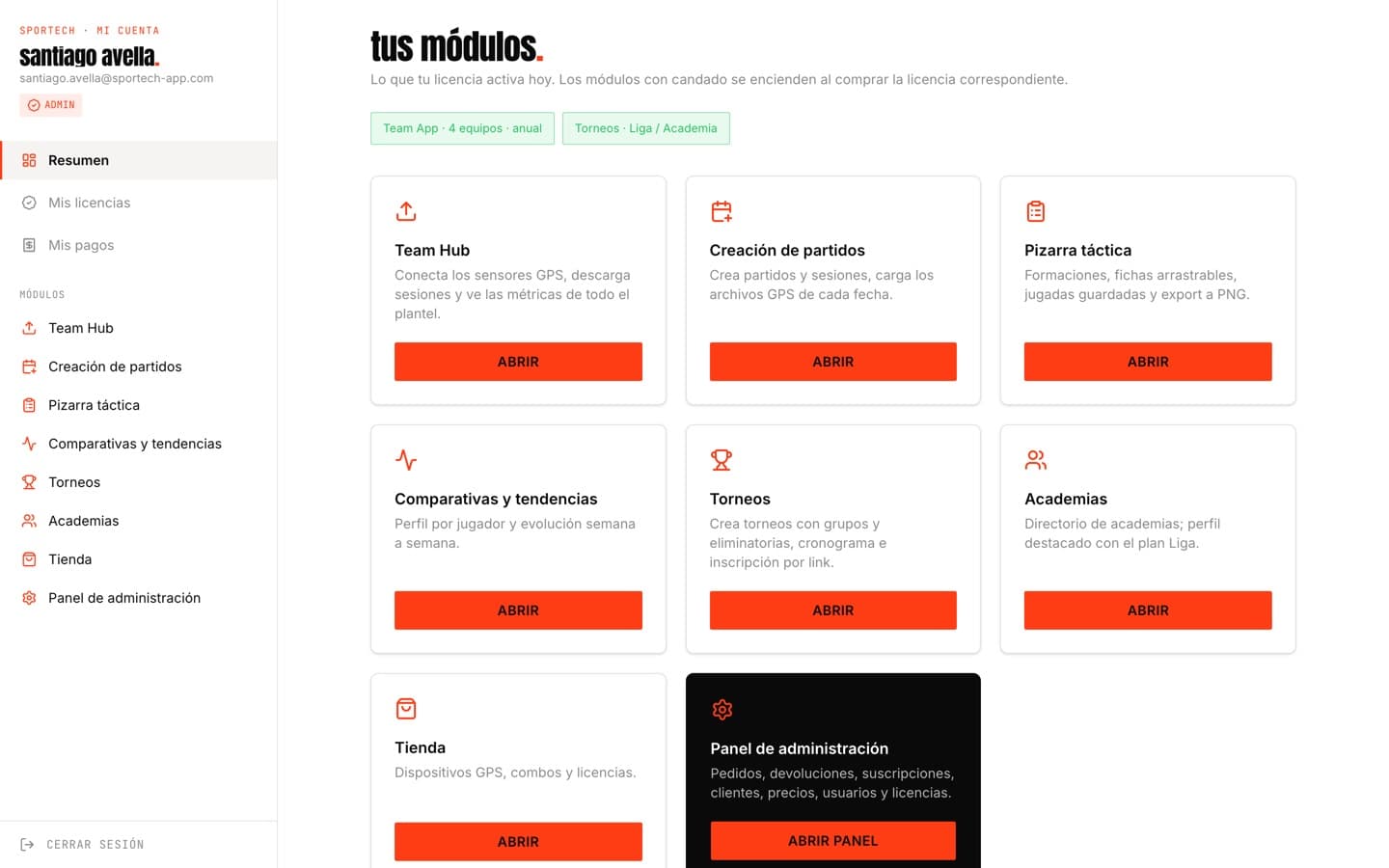
One login for the whole ecosystem. Your license is tied to your purchase email and activates on its own.
- 01Sign in with your email. At /cuenta, with the email and password from your purchase (or the ones your club admin created). That same session works on the website, the Team Hub and tournaments — no second login.
- 02Check your licenses. My licenses shows your plan, billing cycle and start date. Just paid and don't see it? Hit Refresh.
- 03Open your modules. Every feature is a module in the side menu: what your license unlocks opens right away; locked ones show a padlock and the exact button to buy them.
- 04Track your payments. My payments lists your purchase history and subscription status, straight from Stripe.
- → Plan change or cancellation? Write to us — you keep access until the end of the paid period.
record your match with the app
The player's app: the sensor records on its own during the match, and Onyx Track turns it into metrics on your phone.
- · A Sportech GPS sensor (ACTION TRACER or PRO), charged
- · Android 7.0+ (direct download) · iPhone via TestFlight
- · Bluetooth on
- 01Install the app. On Android, get it from the Downloads page (direct .apk install — accept the source prompt the first time). On iPhone it's via TestFlight invite.
- 02Turn the sensor on and place it. It goes in the vest pocket, between the shoulder blades. Switch it on outdoors and give it a few seconds to lock GPS.
- 03Play without your phone. The sensor records to its own memory: you don't carry the phone during the match.
- 04Connect and download. When you finish, open the app, go to Devices and pick your sensor: the session downloads over Bluetooth in seconds.
- 05Read your metrics. Total distance, sprints, top speed and calories for the session, with charts.
- 06Track your progress. History keeps every session, classified by type — match, training or sprint test — with your running totals.
- → Classify each session properly: your history and evolution are built from it.
- → Whole squad? The coach can pull every sensor at once with the Team Hub.
Something failing? Sensor not showing? Make sure it's on and charged, phone Bluetooth is active, and bring it within a meter.
Download the app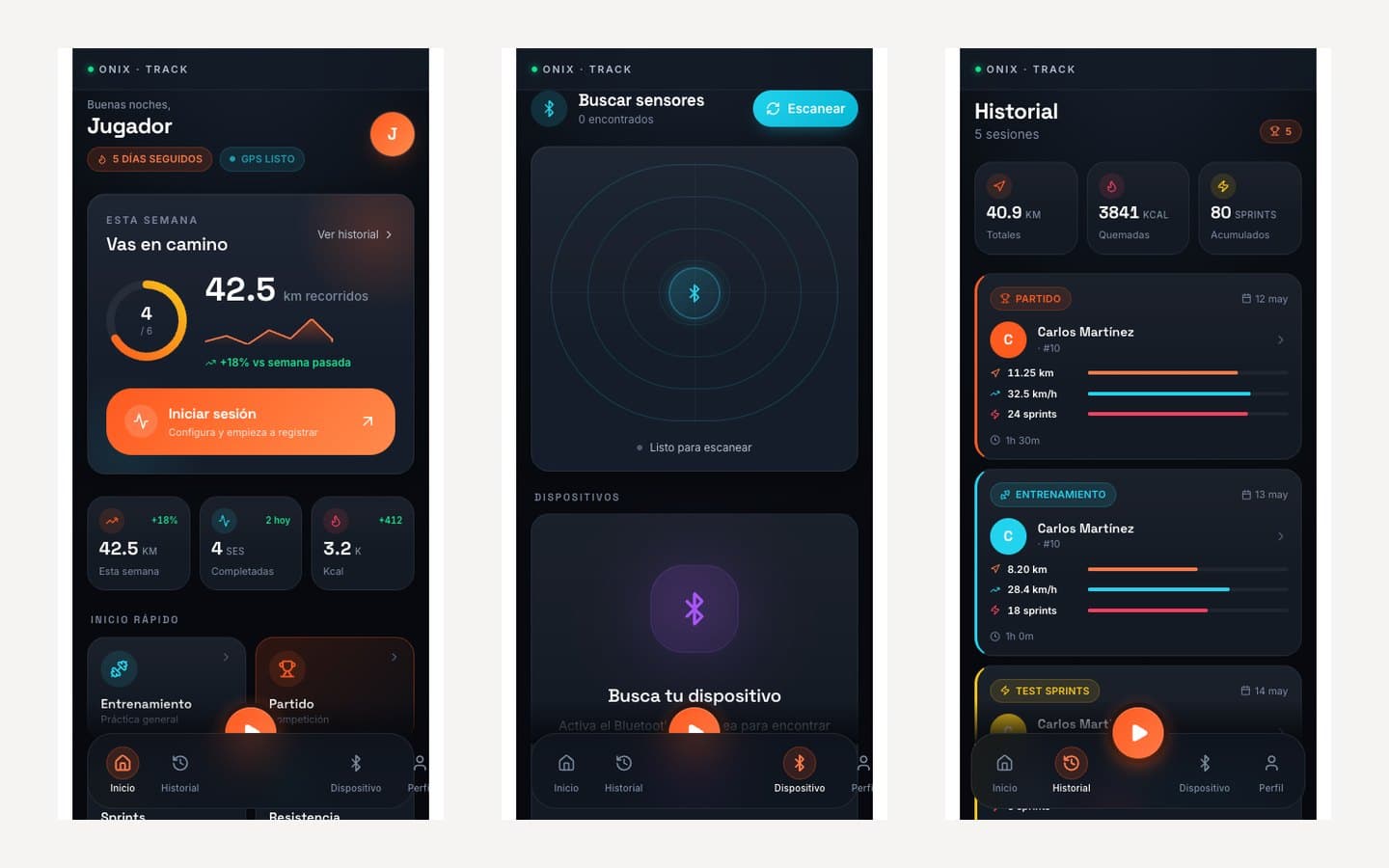
download the whole squad
The coach's command center: several sensors at once, full-squad downloads and the pitch with routes, replay and heatmap.
- · A computer (Mac, Windows or Linux)
- · Google Chrome or Microsoft Edge — Safari and Firefox don't support Web Bluetooth
- · A Sportech account with a Team App license
- 01Open the Team Hub. If you're already signed in on the website, you're in — same login. The side menu holds every module.
- 02Connect the sensors. Hit Connect sensor and pick them one by one in Chrome's window. Several can stay connected at once.
- 03Name your players. Assign each player's name to their sensor once — it's remembered for future sessions.
- 04Download the recordings. Per player, or everything at once with Download all (ZIP). Sessions export as GPX or CSV.
- 05Analyze on the pitch. View pitch shows routes, animated replay with adjustable speed, heatmap, zones and the team ranking.
- → Nothing is uploaded: recordings process locally on your computer and you decide what to export.
- → Modules your license doesn't cover show the unlock notice — plus 'Already bought it — refresh' right after paying.
Something failing? Chrome can't find the sensor? Check the computer's Bluetooth and make sure the sensor isn't connected to a phone at the same time.
Open Team Hub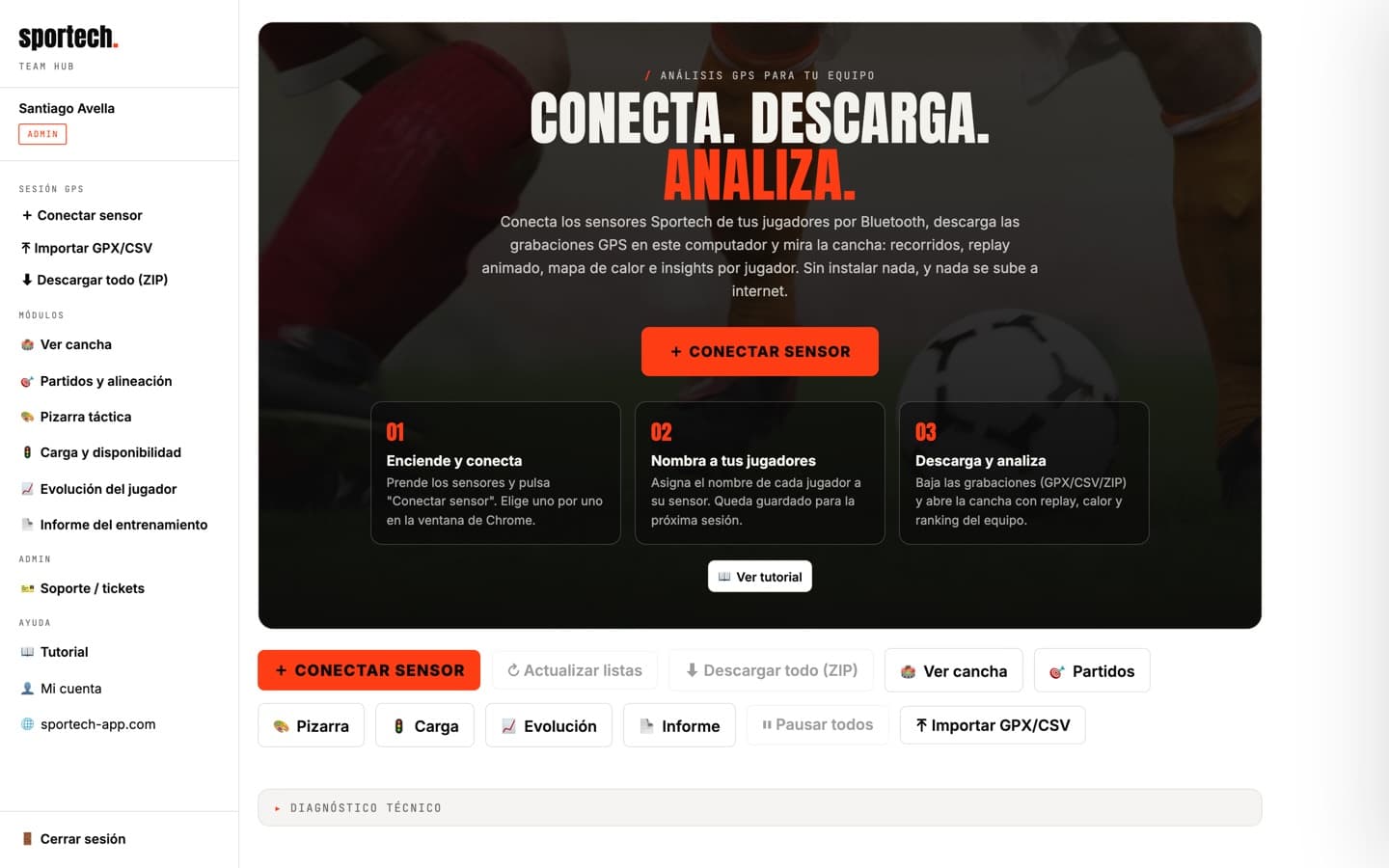
every position with its real data
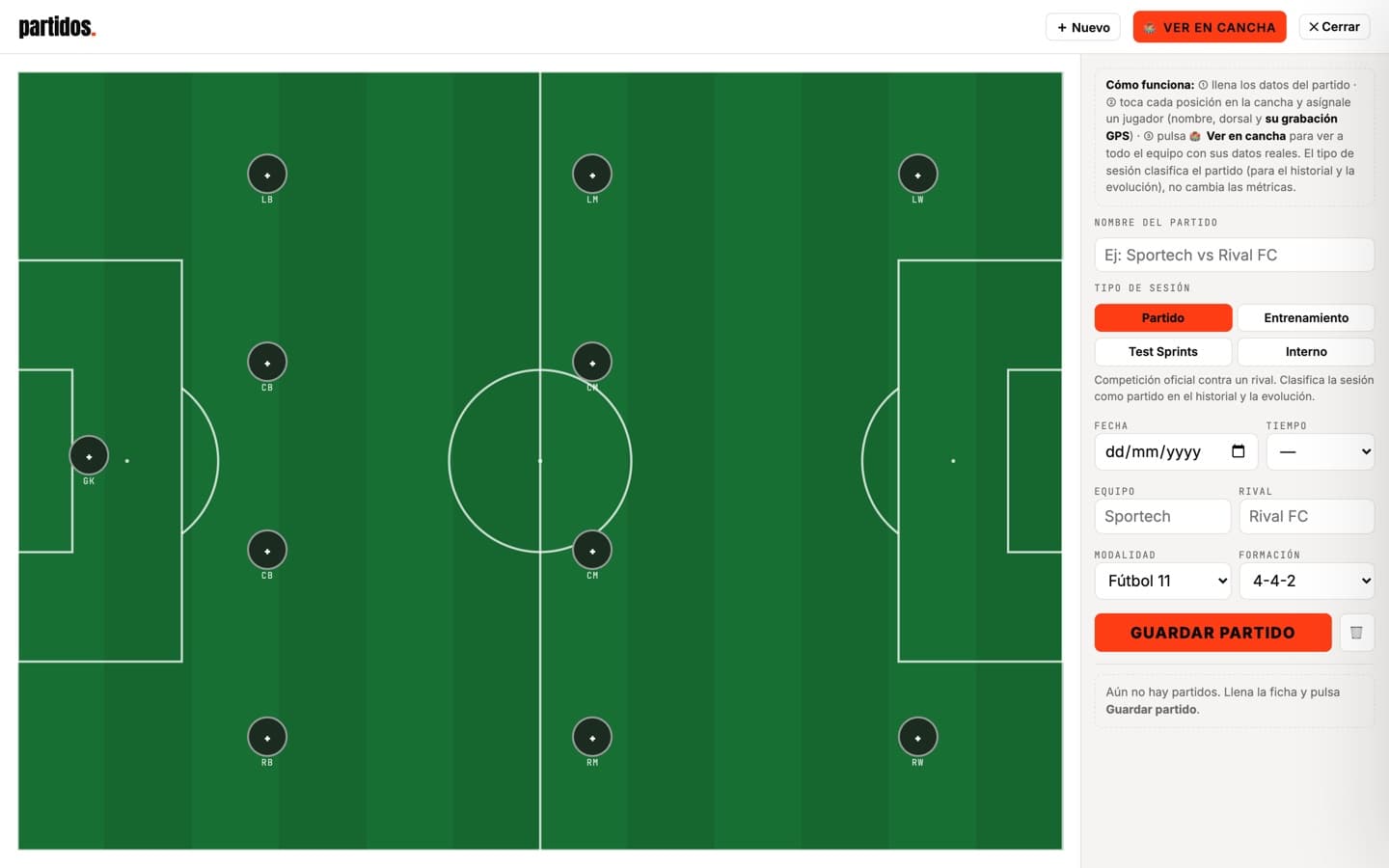
Build the lineup on the pitch and give each position its player with their GPS recording from that day.
- 01Create the match. Hit New and fill the card: name, session type (match, training, sprint test or internal), date, rival, format and formation.
- 02Assign each position. Tap a position on the pitch and pick player, number and their GPS file. Repeat until the eleven is complete.
- 03Save the match. Save match adds it to the team history and feeds each player's individual evolution.
- 04View it on the pitch. View on pitch opens the whole team together, with that day's real metrics.
- → The session type classifies the match for history and evolution — it doesn't change the metrics.
draw the play
Formations, draggable chips, arrows and PNG export. Included with the Team App license — or on its own.
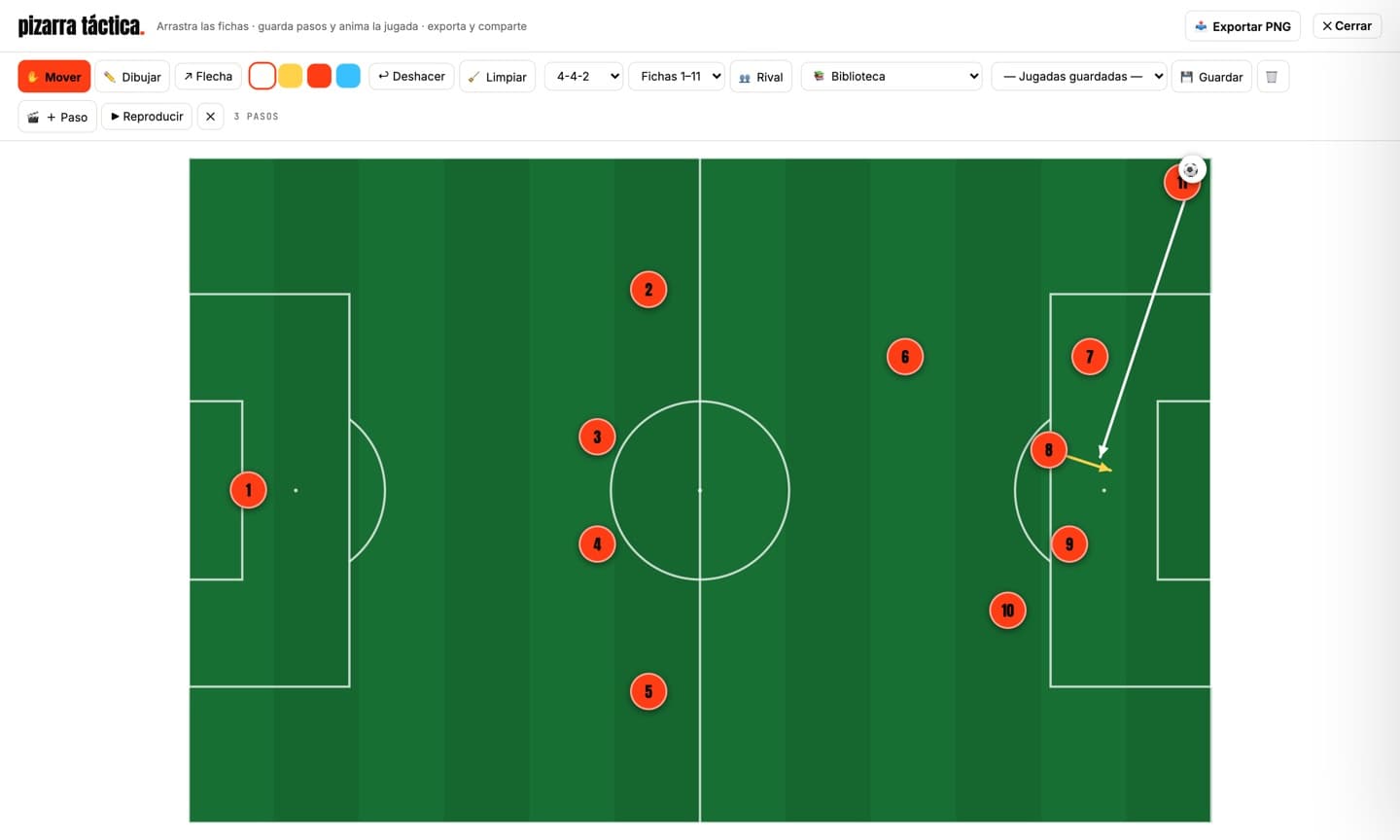
- 01Set the formation. Pick 4-4-2, 4-3-3 or whatever you play: chips 1–11 arrange themselves. Toggle Rival for the mirrored side.
- 02Move and draw. Drag chips in Move mode; switch to Draw or Arrow to trace the play in several colors.
- 03Fix without fear. Undo reverts the last stroke and Clear resets the pitch — your chips stay.
- 04Animate the play. Position the chips and hit + Paso; move them and save another step. ▶ Reproducir plays the whole move step by step, in motion.
- 05Save your plays. Name them and they live in Saved plays — animation included — ready for the team talk.
- 06Share it. Export PNG produces the image ready for the team chat.
- → The 📚 Library ships ready-made animated plays: corner, counter-attack, build-up, high press and free kick.
- → Board only? It's sold separately in the shop — no full license needed.
run your tournament
Pro-level tools for your league: automatic brackets, schedule with pitches and live standings. Teams register themselves via a link.
- 01Start free. The Free plan gives you your first tournament (up to 8 teams) fully unlocked; Organizer and League licenses make it unlimited.
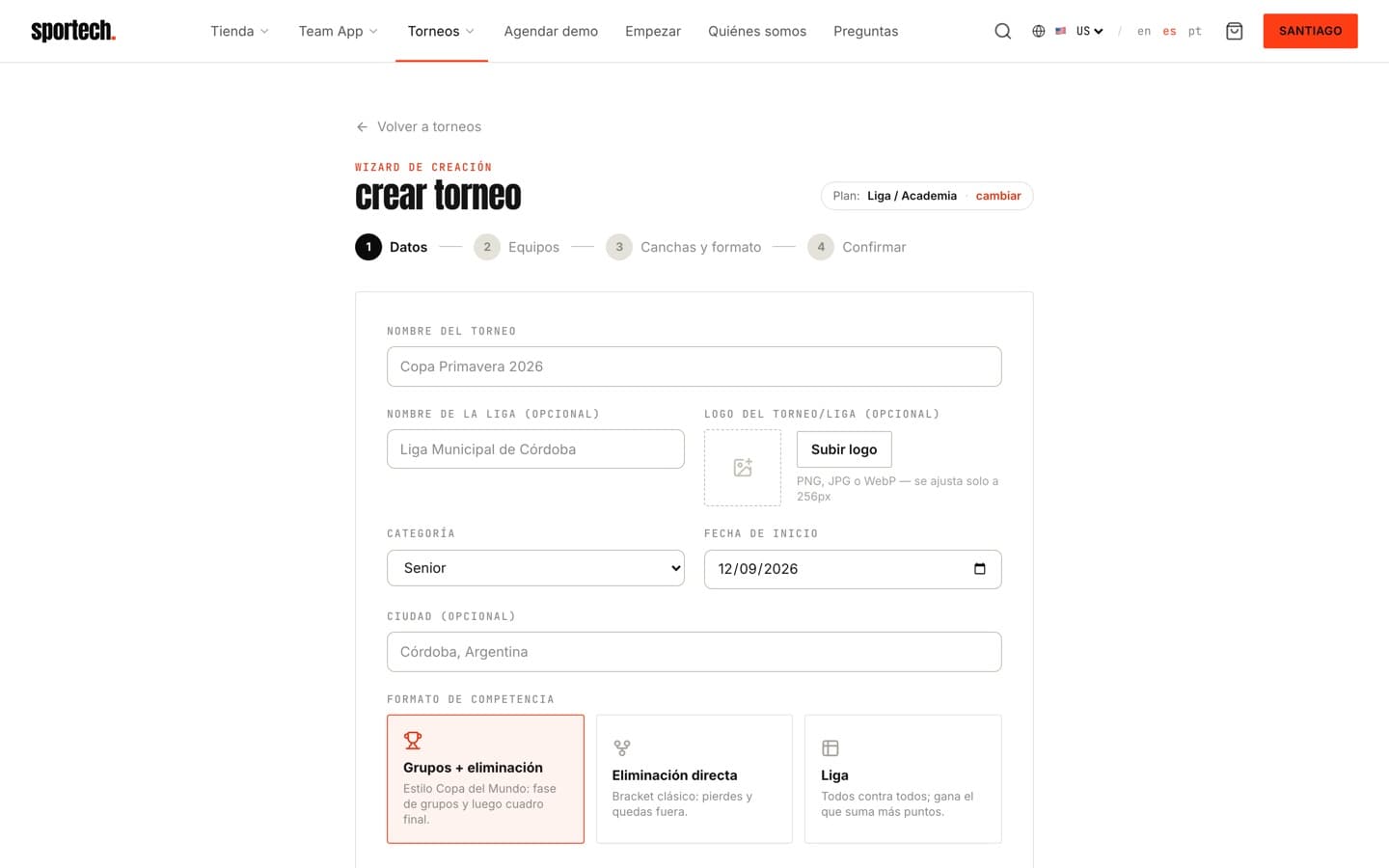
- 02Set up the competition. Name, league, logo, format (groups, knockout or mixed), categories and start date. The bracket builds itself.
- 03Share the registration link. Each tournament generates a unique link: send it over WhatsApp and every team registers its own roster, crest and numbers — you just approve.
- 04Publish the schedule. Dates, times and pitches assigned with rest periods respected, exportable to Google and Apple Calendar.
- 05Follow it live. Enter results and the table updates with official tie-breakers; top scorers included.
- → Everything runs on your single Sportech account — the same one from the shop and the Team Hub.
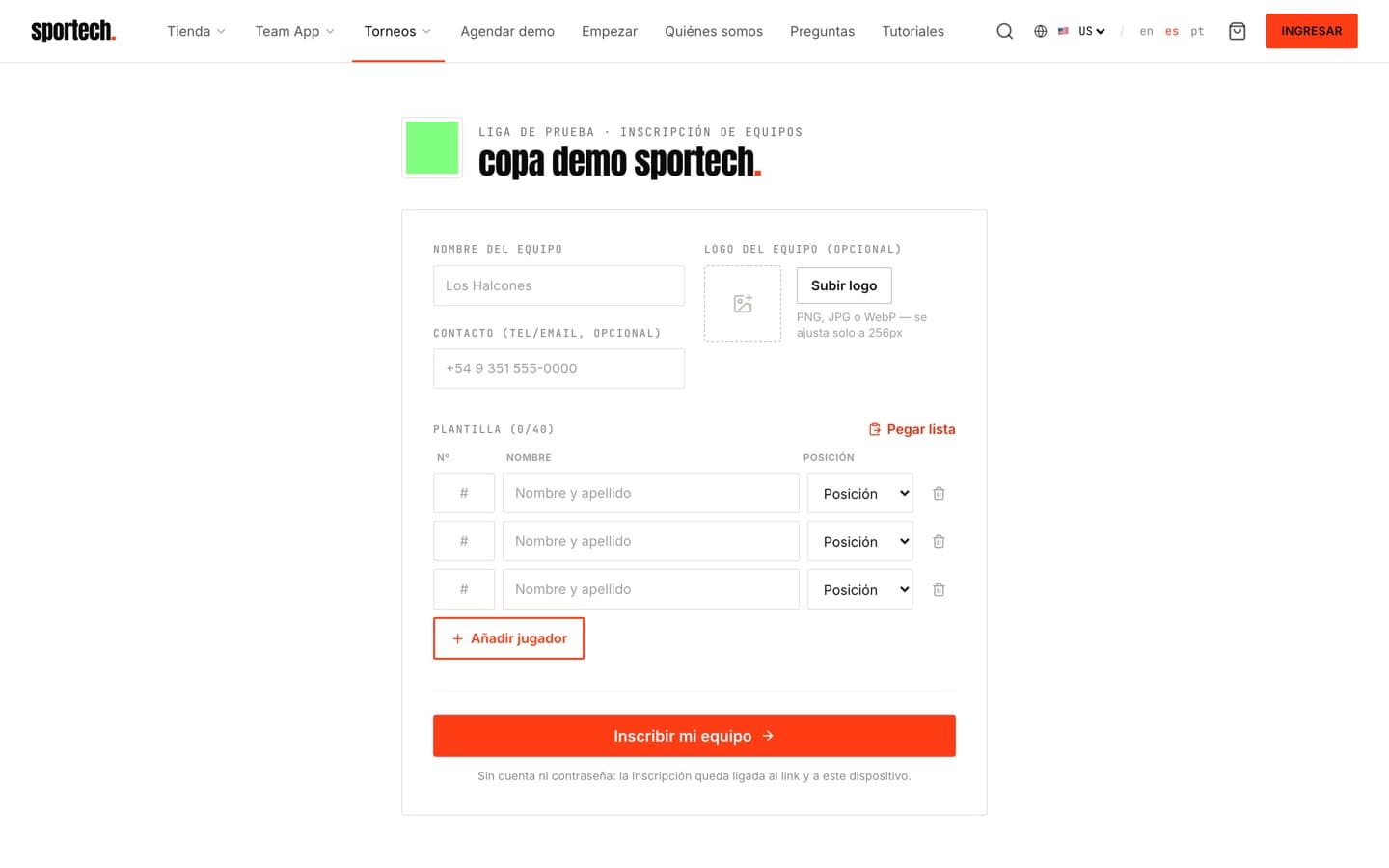
register your team
Got a registration link? This is how you enter your team — no account, no password.
- 01Open the organizer's link. It's unique per tournament. Open it on your phone or computer — the form loads with the tournament's name.
- 02Set your team identity. Team name, crest (the image adjusts itself) and an optional contact so the organizer can reach you.
- 03Load your roster. Player by player with number (1–99) and position — or use Paste list to bring the whole squad from WhatsApp in one go.
- 04Register and keep your access. Hit Register my team. The entry stays tied to the link and that device so you can edit it later.
- → Last-minute changes? Open the same link from the same device and edit your roster.
Something failing? Link doesn't open the form? Ask the organizer to resend it complete — it carries a code after ?codigo=.
Explore tournaments