download the whole squad
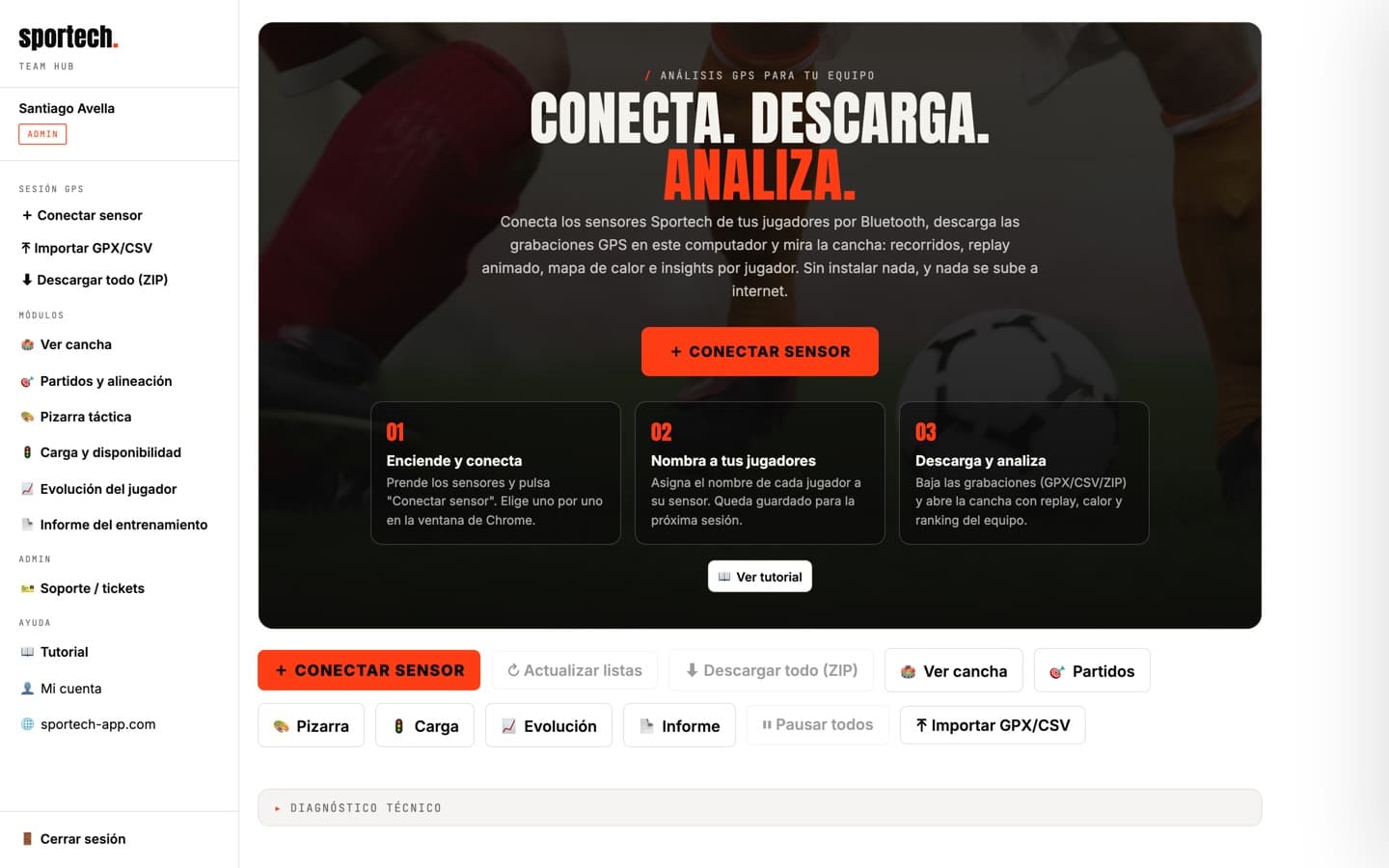
The coach's command center: connect several sensors at once from your computer and pull everyone's recordings as soon as the session ends.
- A computer with Windows, Mac or Linux
- Google Chrome or Microsoft Edge (Safari and Firefox don't support Web Bluetooth)
- A Sportech account with a Team App license
- 1
Open the Team Hub
Sign in with your Sportech account: if you're already signed in on the website, you're in. The first time it shows a short tutorial.
- 2
Connect the sensors
Hit + Connect sensor and pick each one in Chrome's window (they show up as $ATP-…). Next time they appear as authorized and reconnect in one click.
- 3
Name each player
Type the player's name on their sensor's card. It's saved for future sessions.
- 4
Pause, then download
A sensor that is recording must be paused before downloading. Save each recording as GPX or CSV, or the whole team with ⬇ Download all (ZIP).
- 5
Open the pitch
Hit 👁 View on a recording to open the pitch with route, replay and heatmap. The “Analyze the session” guide explains every view.
- → When the player walks onto the pitch, Bluetooth drops because of the distance: that's normal. The sensor keeps recording and the Hub reconnects when it's back.
- → Nothing is uploaded: recordings are processed on your computer and land in your Downloads folder.
- → A module with a padlock? It unlocks with the Team App license; if you just paid, hit “Already bought it — refresh”.
Something failing? Chrome can't find the sensor? Check the computer's Bluetooth, that the sensor is on and that it isn't connected to a phone at the same time. For anything else, open a ticket with 🎫 and leave “attach diagnostics” ticked.
Open Team Hub