record and see your data
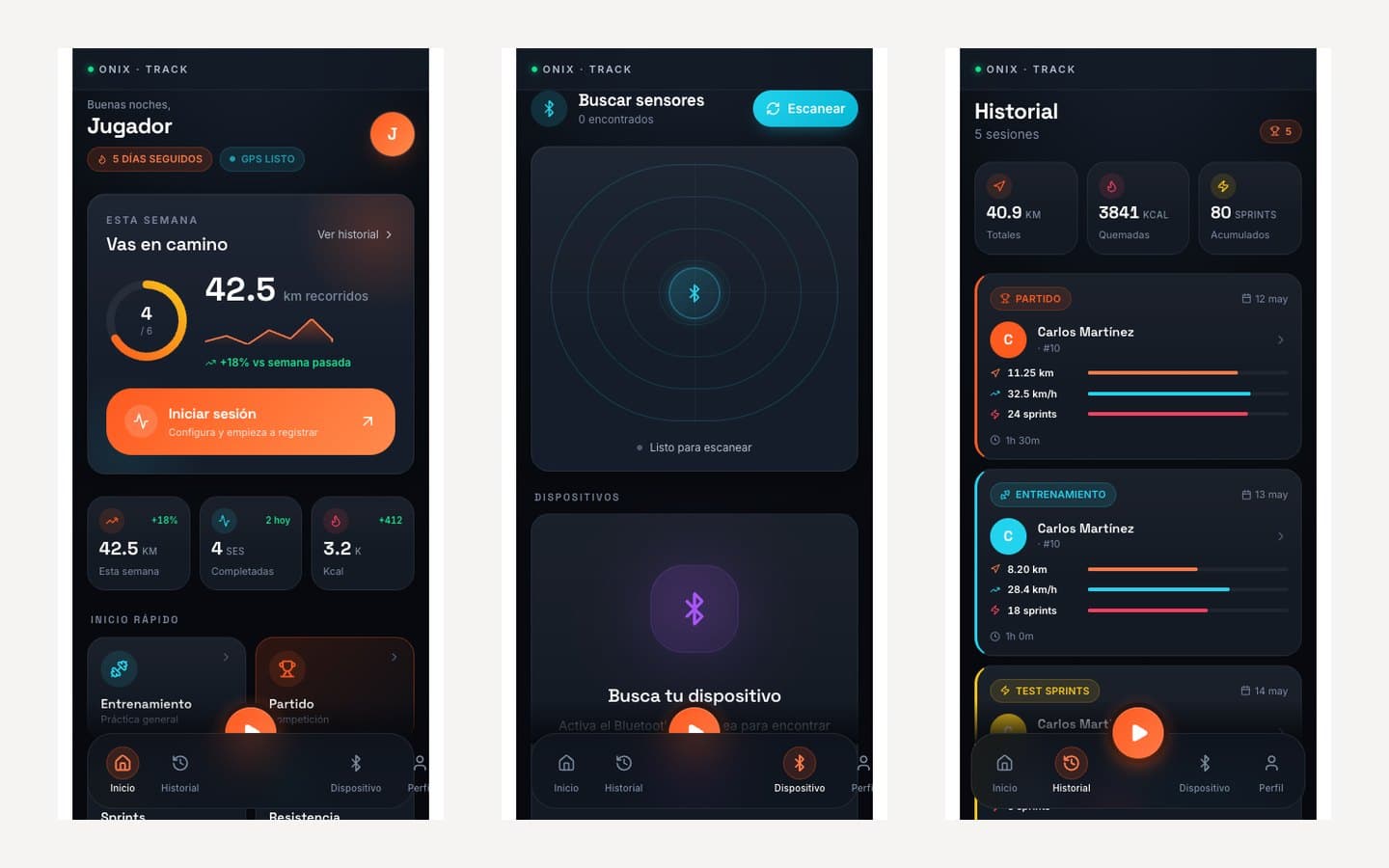
The free player app: download your sessions over Bluetooth and keep your history on your phone, no account needed.
- Android 7.0 or later · iPhone: coming soon
- Bluetooth on
- Your sensor, charged (see “Your GPS sensor”)
- 1
Install Onyx Track
Free on Google Play. If your phone has no Google Play, the .apk installer is on the Downloads page.
- 2
Pair your sensor
With the sensor on and close by, open the Device tab and tap Scan. Pick yours from the list: it's remembered for next time.
- 3
Start the session
On Home, tap Start session or one of the quick-start shortcuts: training, match, sprints or endurance. You can also start recording with the sensor's button.
- 4
Play without your phone
The sensor records to its own memory: your phone can stay on the bench.
- 5
Download the session
When you finish, stop the recording, bring the sensor close to the phone and download it from the Device tab. It takes a few seconds.
- 6
See your data
Distance, top speed, sprints, calories and duration for every session. History keeps them all, with your running totals.
- → Pick the right session type: your history and progress are sorted by it. The metrics are measured the same way.
- → Your data stays on your phone: no account needed.
- → Whole squad? The coach downloads every sensor at once with the Team Hub.
Something failing? Sensor not showing? Check it's on, that your phone's Bluetooth is on and that the sensor isn't connected to another phone or the Team Hub. Bring it within a meter and tap Scan again.
Download the app